Back to marketplace
Split Stackable Desktop Paper Tray with Accessory Divider Option

Split Stackable Desktop Paper Tray with Accessory Divider Option

By Jonathon Ringeisen · Saved version 6

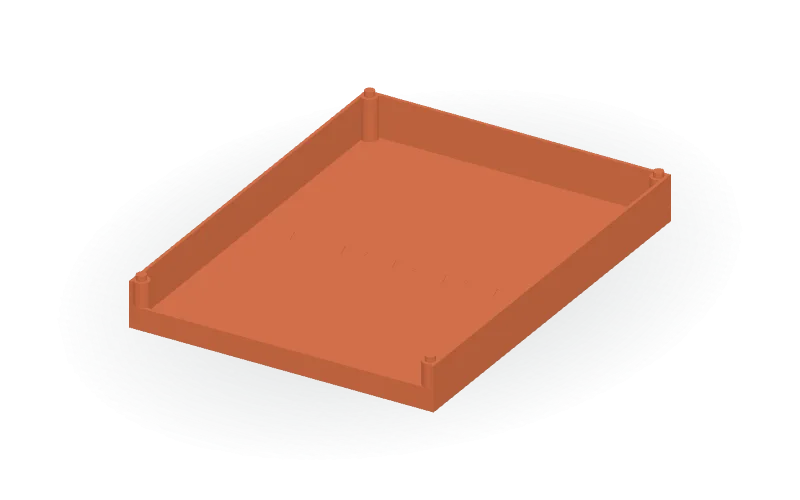
Organize desktop papers or small accessories with a rectangular tray featuring a low front lip, raised side and rear walls, and corner locating tabs with underside sockets for stacking. The design splits into front and rear halves with dovetail joints along the floor seam. Choose an open paper tray or an accessory version with two crosswise dividers forming three compartments. Editable parameters cover overall width and length, wall and floor thickness, wall and front lip height, corner posts, stacking tabs and socket clearances, divider dimensions, and dovetail count, size, and clearance. Select either half individually or view the assembled model. Available formats: STL, 3MF, and editable OpenSCAD source.

Copy this community design to your library to customize it and download your saved version.

Log in to copy
Saved parameters

Values from version 6. Units are shown where supplied by the creator. These are model inputs; check the exported geometry and fit in your slicer.

Parameters for saved version 6
Parameter Value
Tray version: 0 = paper, 1 = accessories0
Output part: 0 = front, 1 = rear, 2 = assembled preview2
Overall width234
Overall assembled length310
Wall height above the floor32
Wall thickness2.4
Floor thickness3
Front lip height above the floor14
Corner post radius6
Corner post center inset6
Upward locating tab height4
Upward locating tab diameter7.4
Socket diametral clearance0.6
Socket extra depth0.6
Accessory divider height18
Accessory divider thickness2
Number of floor dovetail tongues5
Dovetail projection beyond the seam10
Dovetail width at the seam12
Dovetail width at its outer tip18
Dovetail clearance per mating side0.3

The creator has not added print notes yet. Check dimensions, orientation, supports, and material settings before printing.

Make this design your own

  1. Copy to your library. Log in and use “Copy to my designs” to create a private, editable copy.
  2. Adjust and preview. Change exposed parameters, edit the OpenSCAD code, or ask AI for changes. Save a new version when ready.
  3. Export and check. Download STL or 3MF for your slicer, or editable OpenSCAD. Check dimensions, build volume, orientation, and print settings.