Back to marketplace
Stackable Filament Spool Bay to organize your filament

Stackable Filament Spool Bay to organize your filament

By Landon Ringeisen · Saved version 3

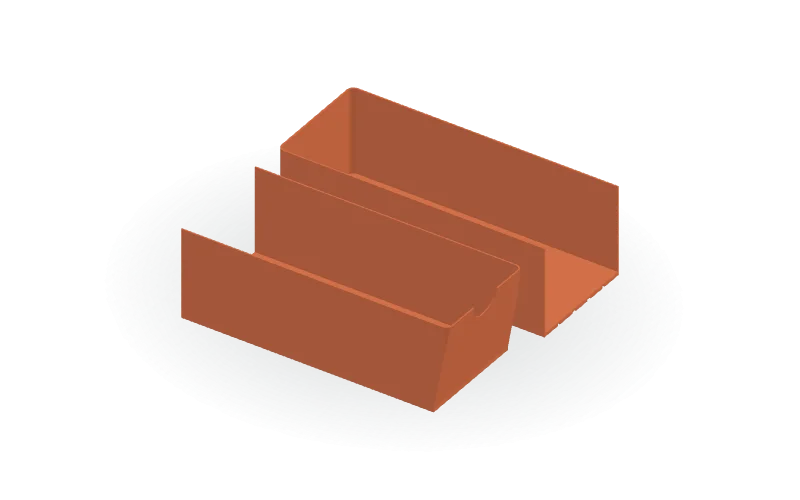
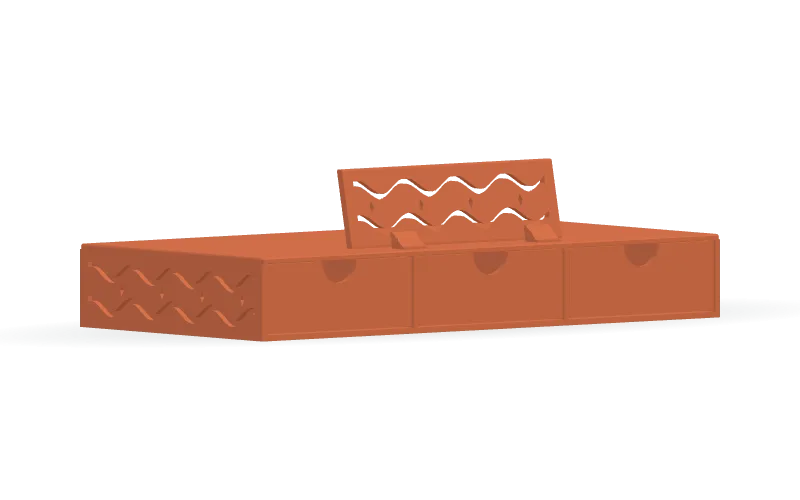
Organize upright filament spools with a customizable storage bay featuring an open rail floor, four stacking posts, and thin X-shaped side braces. Front and rear retaining lips border the compartment, while tapered locating pegs and underside sockets provide alignment between stacked bays. The frame replaces solid floor and side panels with narrow structural elements to reduce modeled volume. Editable parameters include compartment width, depth, tier height, rail and post sizes, brace dimensions, retaining lips, and peg size, position, and clearance. Adjust the OpenSCAD source to suit your storage layout, and check filament usage in your slicer before printing; a per-bay weight has not been verified. Available formats: STL, 3MF, and OpenSCAD.

Copy this community design to your library to customize it and download your saved version.

Log in to copy

Saved parameters

Values from version 3. Units are shown where supplied by the creator. These are model inputs; check the exported geometry and fit in your slicer.

Parameters for saved version 3
Parameter Value
Clear spool compartment width82
Overall front-to-back depth226
Height per stacked tier, excluding locating pegs226
Width of each side rail and stacking post6
Base rail thickness3
Front-to-back thickness of stacking posts6
Side brace thickness across the bay3
Side brace width measured front to back6
Width of the three floor cross rails6
Retaining lip height above floor12
Retaining lip front-to-back thickness4
Locating peg diameter3
Locating peg height3
Radial clearance around locating pegs0.3
Distance of locating pegs from front and back24
Rear X brace front-to-back thickness2.4
Rear X brace width measured across the bay5

The creator has not added print notes yet. Check dimensions, orientation, supports, and material settings before printing.

Make this design your own

  1. Copy to your library. Log in and use “Copy to my designs” to create a private, editable copy.
  2. Adjust and preview. Change exposed parameters, edit the OpenSCAD code, or ask AI for changes. Save a new version when ready.
  3. Export and check. Download STL or 3MF for your slicer, or editable OpenSCAD. Check dimensions, build volume, orientation, and print settings.